Cookies enable the best possible provision of our services. By using our site, you agree that cookies will be used.
Editor innovations
Collapse alternative formats in the structure view
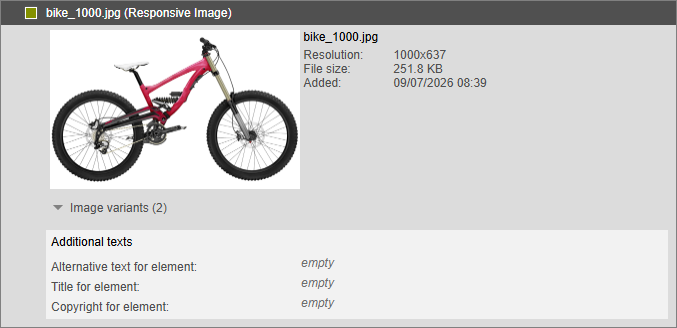
For image elements with alternative formats, the structure view used to show each variant as a separate full-size block.
Now only the first variant is shown as an image. The others are collapsed under Image variants, with their number in brackets, and a click on the arrow expands them.
Display names for predefined properties
A localized display name can be defined for the values offered for a property.
Without a matching configuration, the technical value is still shown.
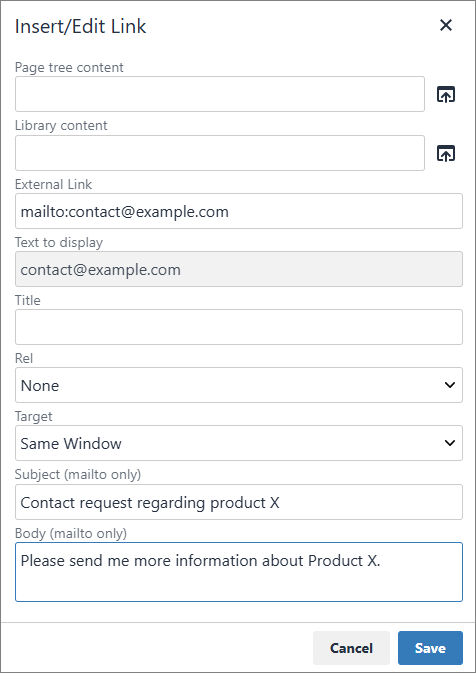
Attributes for mailto links
Subject and body can now be maintained for mailto links.
Bulk move in the extended page tree
Several pages can now be moved at once in the extended page tree.

pirobase Editor button in the Webadmin header
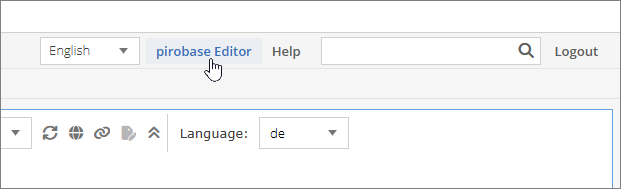
In the Webadmin toolbar, the pirobase Editor button takes you directly to pirobase editing.
Color picker for properties
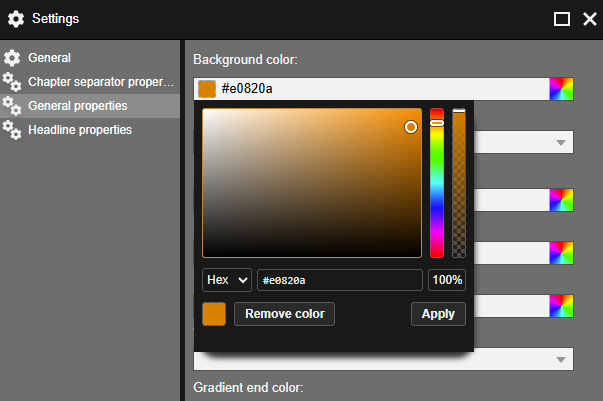
Every property of the new standard data type Color has the color picker.
Color, hue and opacity can be set separately, and Hex, RGB and HSL are available as color formats.
A CSS color value can still be typed directly into the input field.
Copy and paste content via the clipboard (same system)
Copy is available in the element's options menu, in the context menu of the page tree and in the preview, and also via Ctrl+C.
Content is pasted via Paste from clipboard before, after, into the element or as a reference. At a paste line, the context menu offers Paste here and Paste as reference here, and Ctrl+V pastes there directly.
Pasting works within one system across pages, page trees, communities and browser tabs. Images, references, links and slots are retained. Elements from another system cannot be pasted.
Replace files when uploading in the editor
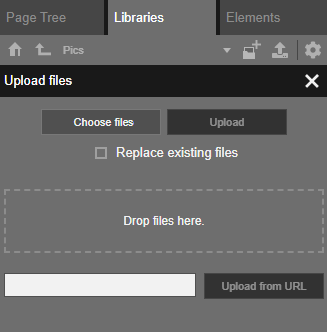
When uploading to the library, the option Replace existing files updates files that are already in the data source. Without the option, they are skipped.
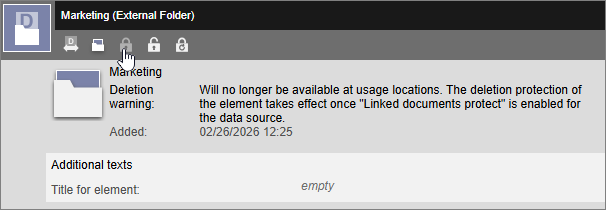
Protect files in the "External Folder" template and element against deletion
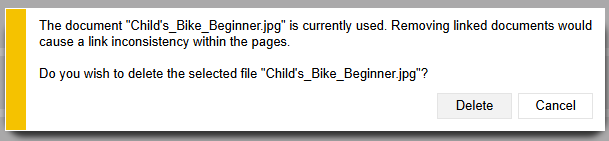
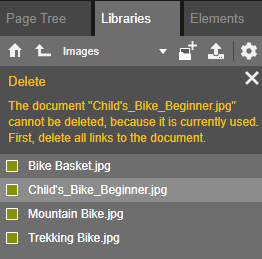
Files delivered by an element of type "External Folder" now count as used when someone tries to delete them.
This deletion protection is optional and can be enabled on the element type as well as directly on an element.
It can be configured as deletion protection or as a warning on deletion.
Whether the protection also applies recursively to subfolders is configurable.
Date element as a standard data type
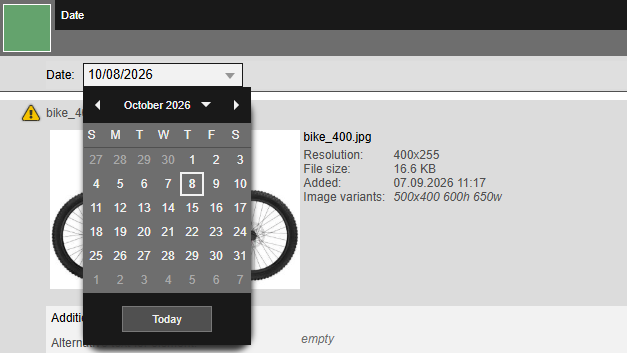
The new standard data type Date holds a date without a time and is stored as a timestamp.
In the pirobase Editor it is entered in a date field with a calendar and displayed in the user's language. The date is included in the search index.
Insert elements more easily into the structure view
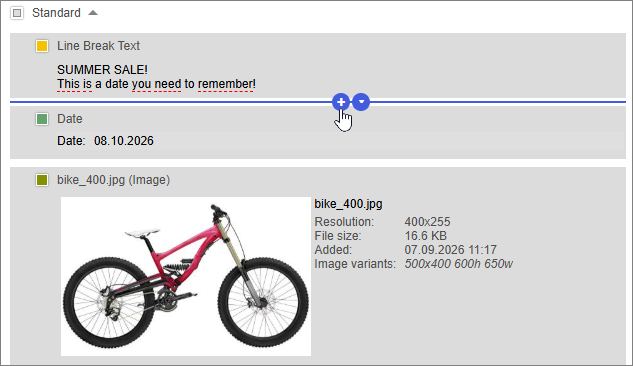
Between two elements, the structure view shows a paste line with a plus icon.
Clicking it opens the selection of elements and templates allowed at this position.
While an element is being dragged, a green line marks where it can be dropped.
Change element type
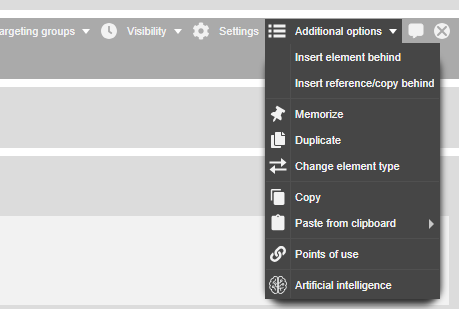
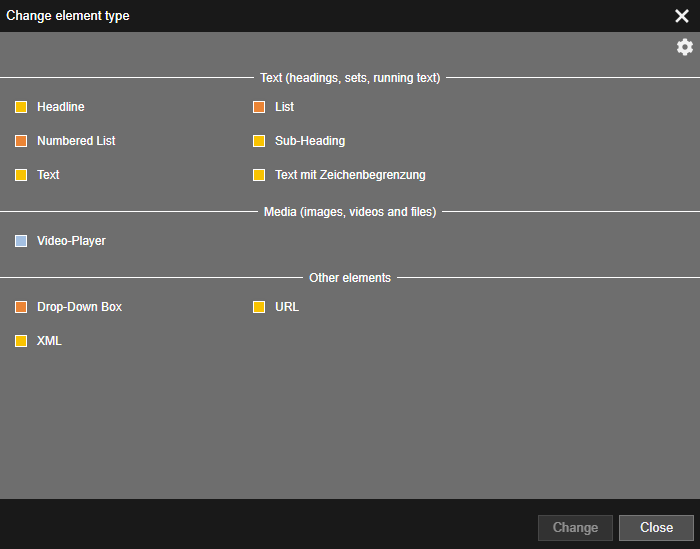
An element can be converted into another element type via Additional options / Change element type in the context menu.
Until now this was only possible in the structure view by dragging an element type from the library onto the element.
The dialog lists only the element types the element can be converted into and that are allowed at this position of the template.
Content is carried over as far as possible. When switching from text to list, each line becomes a list item, and in the other direction each item becomes a line.
Paste Excel content into a table element
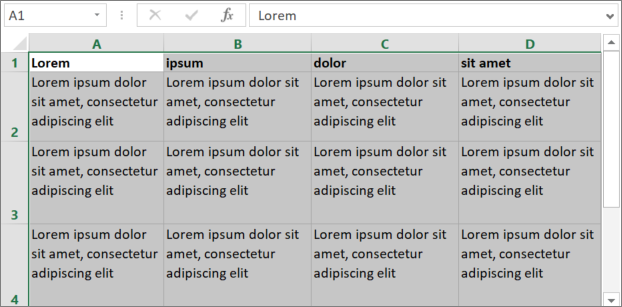
A table copied in Excel or Word can be taken over directly.
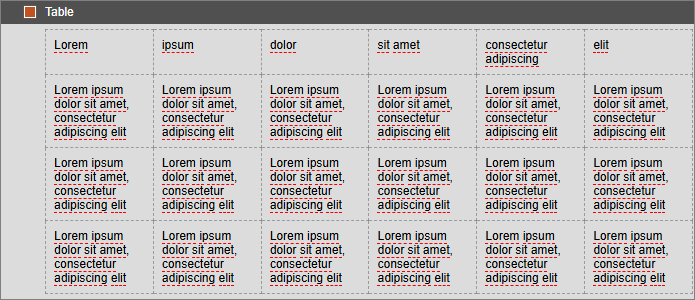
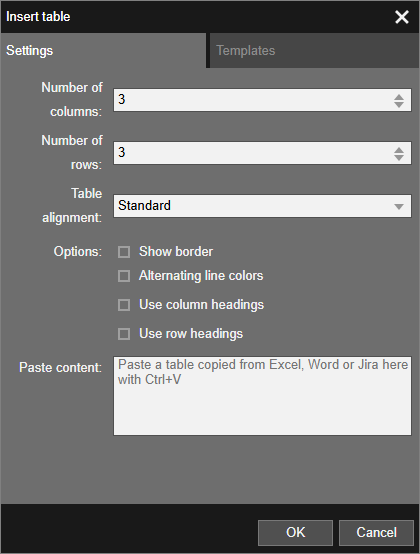
In the Insert table dialog, the Paste content field accepts the table via Ctrl+V and creates it with the rows and columns it detects.
In an existing table, choose Select cell and paste the content from this cell onwards with Ctrl+V.
Cells beyond the permitted number of rows and columns are not taken over.
Expand the entire page tree/subtree with one click
Expand a subtree including all its levels by choosing Expand entire subtree in the context menu of the page tree.
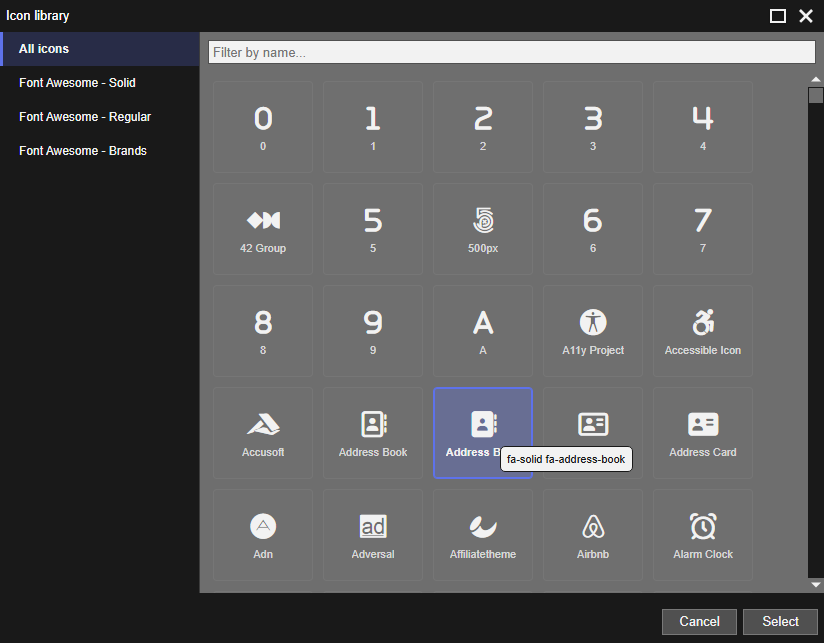
Icon picker for Font Awesome including output
The "Icon" element lets you include an icon from the Font Awesome library.
Assign categories at content level
Until now, categories could only be assigned to pages, now also to elements and templates.
Maintenance is switched on for the element type or template type via Enable categorization.
It can also be enabled globally for all content.
Unlike with pages, the assignment belongs to the working version and only takes effect when that version is published.
The usages of a category list the linked elements and templates as well, and the categories are included in the search index.
Reading time in the Content Check and in the output
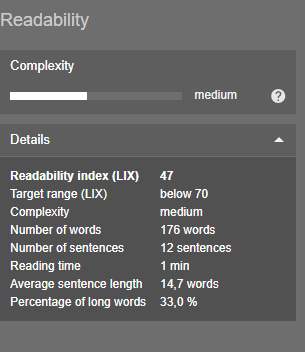
In the Details section of the readability check, the Content Check shows a new line Reading time.
The reading time indicates how many minutes an average reader is likely to need for the page content. It is calculated from the number of words and a reading speed, 200 words per minute by default.
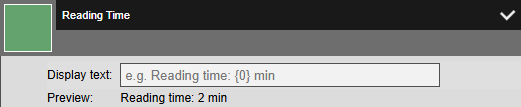
In the output, the reading time can be shown in two ways. The Reading Time element displays it with a custom text or the system-wide default text.
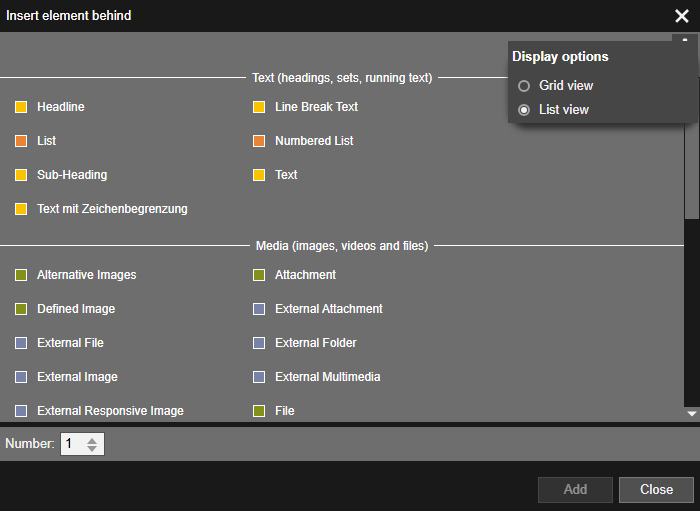
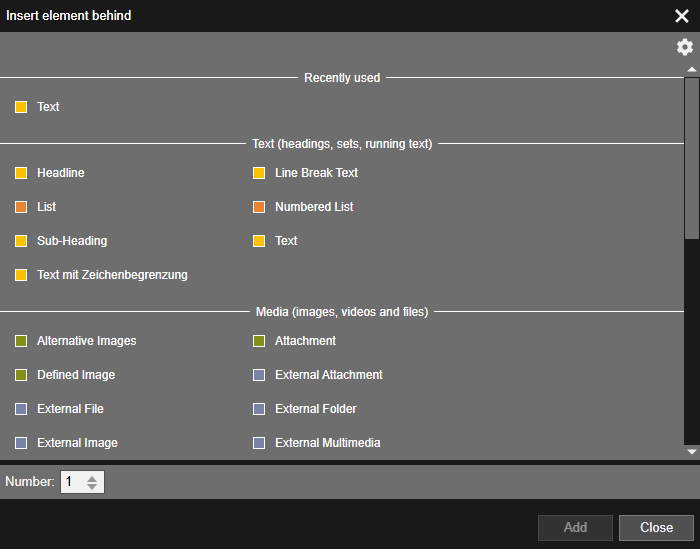
List view in the Insert element dialog
In the dialog for inserting elements and templates, Display options lets you switch between Grid view and List view.
The list view is modeled on the list view of the library and shows more entries at a glance. The browser remembers the chosen view separately for elements and templates.
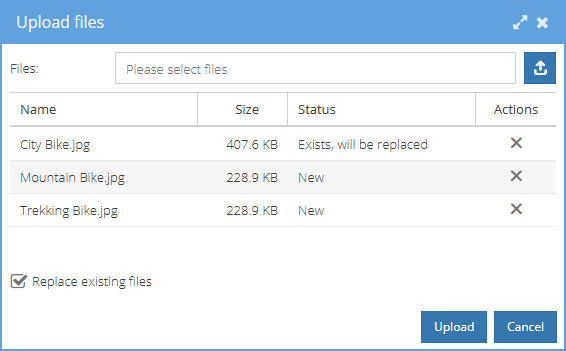
Upload and replace multiple files in data source management
In the data source management of the Webadmin, several files can now be uploaded at once, also by drag and drop into the window.
The option Replace existing files determines whether existing files are replaced or skipped.
The list shows the status of each file, and individual entries can be removed again before uploading.
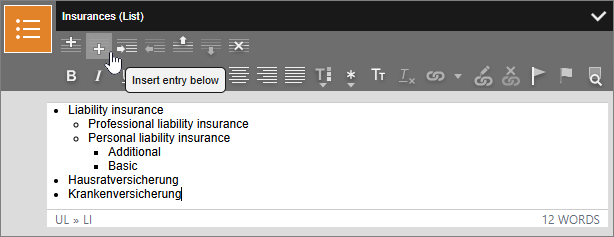
New editor for list elements
A list element is now edited as a whole in one editor instead of item by item.
Enter creates a new item, Tab and Shift+Tab change the nesting, and Shift+Enter inserts a line break within an item.
The same commands are available in the toolbar.
Without WYSIWYG, the editor shows one line per item and represents the indentation with tabs.
In the source code, only the list, its items and formatting are allowed, other markup is rejected.
Option to extract a ZIP archive into the current folder
Specify the target folder for extracting the .zip archive and how files that already exist should be handled.
The following options are available:
- Extract to a new folder
- Extract to the current folder and replace existing files
- Extract to the current folder and skip existing files
Move folders between data sources
Folders can now also be moved between different libraries.
This is only possible for libraries of the types CB, CB (Versioning) or Filesystem.
Folders can only be moved between libraries of the same type and within the same community.
After the move, the system automatically adjusts the links to the folder and the files it contains.
Preference for list view in the library
The library can be switched to list view. This setting is now saved as a user setting, so it persists and is available across browsers.
Status report for external links
The report QueryExternalLinksReport checks whether the external links of a website are reachable.
It runs for a community, a page tree, a subtree or a single page, once or regularly via a trigger.
It checks http and https URLs in the texts of all elements.
For each link, the result lists the URL, the status, the page and the element, and it is stored as a file under system#report/QueryExternalLinksReport.
The timeout per link, the number of simultaneous requests and whether reachable links are included can be configured.
Revised table editor
The Insert table dialog is now available in all insert menus.
On the Settings tab you set the number of rows and columns, on the Templates tab you choose a system-wide or community-specific table template.
Split a text element at the selection
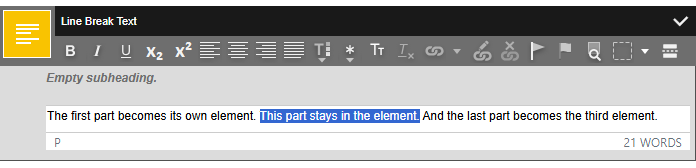
A text element can be split into several elements without copying and deleting text by hand.
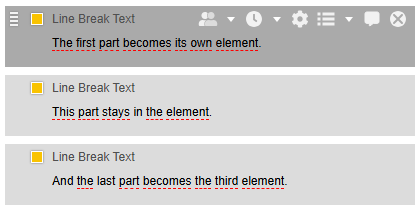
Select the part that should remain in the element and choose Split element at the selection in the toolbar of the text element.
The text before and after it becomes a new element of the same type each. The formatting is retained.
If only the cursor is placed in the text, the element is split at that position. If this would create an empty element, for example because the cursor is at the beginning or end of the text, the function is not available.
Subscript and superscript in the text editor toolbar
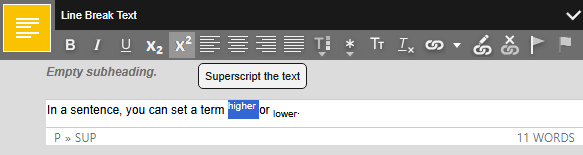
Make a text passage smaller and raise or lower it by selecting the text and choosing Superscript or Subscript.
More precise version comparison
The version comparison now matches the elements to each other before comparing their texts.
If an element is moved, only this element is marked as moved. The elements it was dragged across stay unmarked, even if they are structured the same way.
A new or changed HTML, image, table or form element is marked on its own instead of the whole page.
After changing the element type, the unchanged text stays unmarked. Only the type name in the element header is marked.
Detect the character set automatically when extracting a ZIP archive
When extracting a .zip archive, the character set is now preset to Detect automatically.
pirobase CMS detects on its own whether the file names are encoded in UTF-8, as in archives from macOS or 7-Zip, or in the code page of Windows Explorer.
Umlauts and other special characters in file names come out correctly without having to choose a character set.
For special cases, the character set can still be selected manually.
If no character set is configured in the site settings, no selection appears before extracting, and the character set is always detected automatically.
Previously, UTF-8 was assumed in this case.
Insert recently used elements
The insert dialog shows the group Recently used at the top, with the elements you inserted most recently.
Only those allowed at the respective position are offered.
In the structure view, an arrow on the paste line leads directly to this list without opening the dialog.
The same list is available as a submenu in the element menu and in the context menu of the page tree.

External link
Login required